Here i will explain my reasoning process behind the data structure choices for inu diffusion.
Everything is stored in the jobs.json file, and some of the information is actually the filename of the generated images themselves.
Why JSON?
As thoroughly detailed and explained in the previous devlog, as of now i have zero notion on how databases work, and to me, it seems overkill anyways. so JSON it is.
How is the JSON structured?
Here is an example of a single “job” object in the json :
"e6b0977d-fde6-4e53-b66a-9d6fb0886abd": {
// ⬆️ this is the job ID given by Agent Scheduler
        "job_type": "txt2img",
        "status": "pending",
        "starting_img": null,
        "output_images": [],
        "images_checked": false
},- The object is named after the job ID given by the Agent Scheduler extension
- the
job_typeis… well… the job type. Either txt2img, txt2imgVariations (which we will see later) or img2img. statuscan be eitherpending,doneorfailed.starting_imgdefines the image that was given for queueing the job. Txt2img jobs obviously have no starting image, so it’s null for them.output_imagesis an array containing all the relative paths (to the stable diffusion installation folder) of the images that were generated.images_checkedis a boolean that tells you if the images in a given job have been manually checked for their quality.- This Boolean is set to True when you run the image checker script, which displays all the generated images in a job, and by pressing y/n lets you keep or delete the image for that job. it’s a really quick way to get through a lot of images and iterations quickly. once it’s done, each job that had its images checked gets the
images_checkedBoolean set totrue.
- This Boolean is set to True when you run the image checker script, which displays all the generated images in a job, and by pressing y/n lets you keep or delete the image for that job. it’s a really quick way to get through a lot of images and iterations quickly. once it’s done, each job that had its images checked gets the
with this structure, we have only the stuff we need for each job to know its status.
But another core functionality i wanted was traceability. Given a job , i wanted to have some sort of computationally efficient way to have a function that found which job originally generated that one, which could be called as many times as i wanted to.
Basically, i wanted some sort of pointer to it.
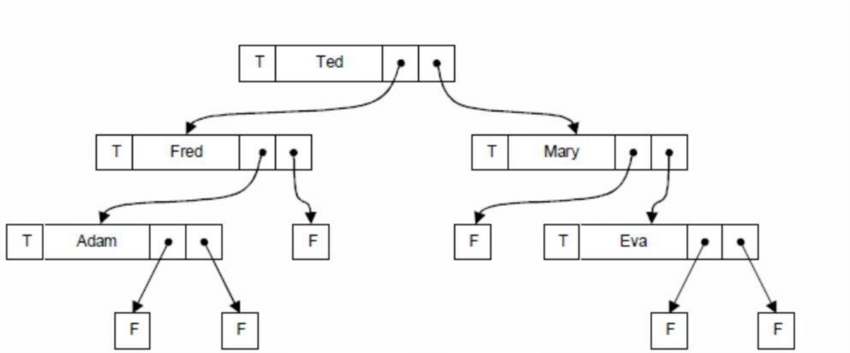
Every image might generate a whole tree of jobs starting from it, maybe variations of it, variations of variations, upscales of variations, upscales of variations of variations… a tree that could end at different levels.
The easiest, most efficient and in my opinion cooler way of doing this, was by storing this information in the filename itself.
How and why the filenames?
First of all, here is how the filenames are saved :
[job-name in b64]_[image index at nesting 0]_[image index at nesting 1]...
Let’s use the previous image as an example. Suppose “Ted” was the actual name of the starting txt2img job, and “Tedb64” the base64 encoding of the job name. “Ted” created two images. those will be named :
Tedb64_0Tedb64_1based on which one was generated first.
For each of those, we started, let’s say, an img2img or txt2imgVariations job.
Tedb64_0 started the job Fred, while Tedb64_1 started the job Mary.
we don’t actually care how these jobs are named, since the job we are referring to is the original one.
Fred (which originated from the Tedb64_0 image) produced two images, so they will be named
Tedb64_0_0Tedb64_0_1based on their generation order.
As you can see, only by looking at the image name, we can know which job started it, and have a full trace of how it was generated. We see that the starting job was Ted, that it generated a job from its first image (Fred), which generated two other images.
⚠️this means that renaming the images is completely out of question!⚠️
But with such a huge drawback, why go for the renaming of the images, instead of something like adding an additional file with this information or putting the information inside the image’s metadata?
Because when managing the images from a file manager, they all get beautifully sorted!
as you can imagine, the images will be displayed the following way (if sorted alphabetically) :
- 🔴
Tedb64_0 - 🔴
Tedb64_0_0 - 🔴
Tedb64_0_1 - 🔵
Tedb64_1 - 🔵
Tedb64_1_0 - 🔵
Tedb64_1_0_0 - 🔵
Tedb64_1_0_1 - 🔵
Tedb64_1_1 - 🟢
Tedb64_2 - 🟢
Tedb64_2_0
Which we can easily visually separate and thus select, move and whatever else we want to do with them.
This naming thing could possibly become some sort of togglable feature, but as of now, I never had the necessity to rename files, so I’m gonna keep it like this.